
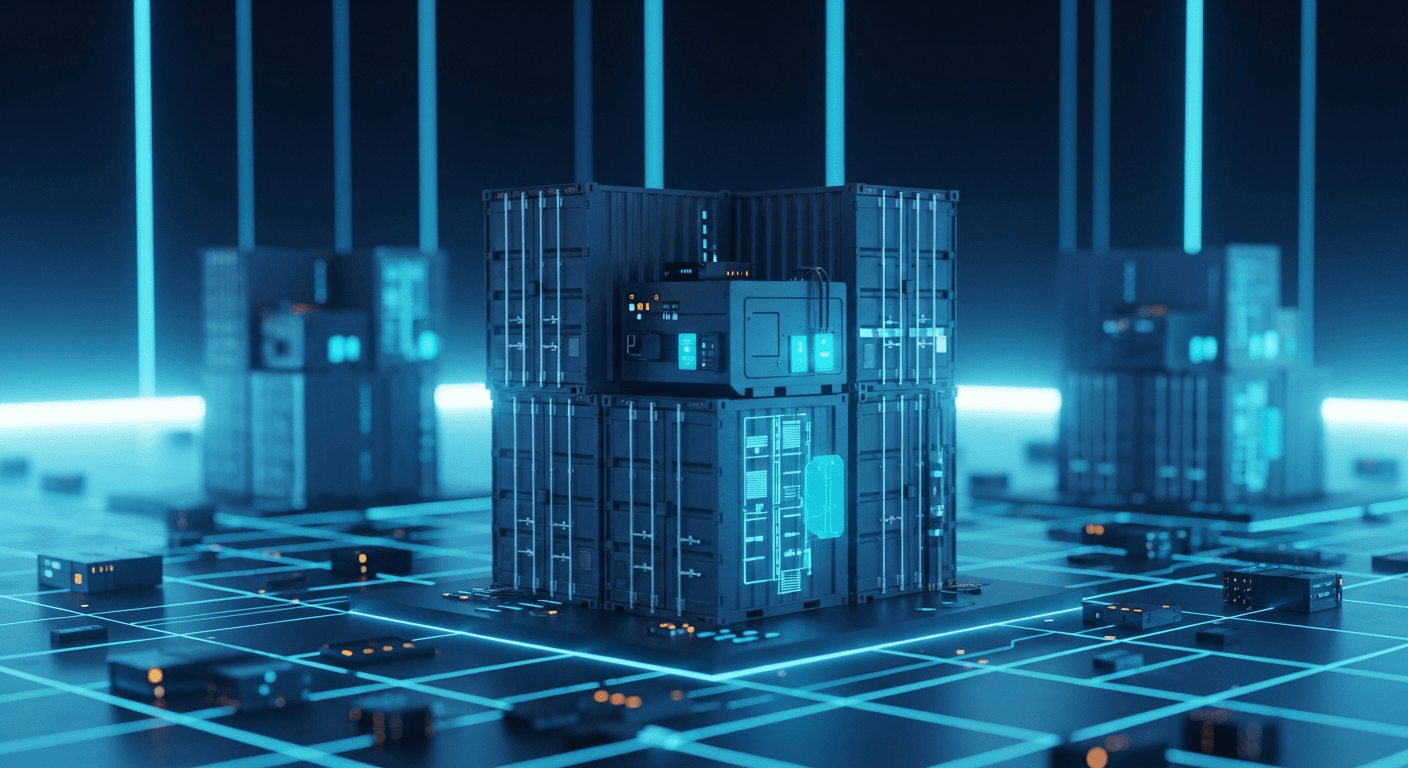
TL;DR: Docker solves the infamous "it works on my machine" problem by packaging your code and all its dependencies into standardized, isolated containers. Unlike traditional Virtual Machines that require a full, resource-heavy operating system, Docker containers share the host computer's kernel, making them incredibly lightweight, fast, and efficient. You can verify your local setup immediately by executing
docker run hello-worldto pull and run a pre-made image.
⚡ Key Takeaways
- Eliminate the "it works on my machine" error by bundling your code, libraries, and configurations into a single, isolated Docker container.
- Understand containerization through the shipping container analogy: Docker acts as a universal "steel box" that runs identically on any developer's laptop or production server.
- Verify your local Docker installation by executing
docker run hello-worldto automatically download and run a test image from the internet. - Choose Docker over traditional Virtual Machines (VMs) to avoid booting gigabyte-sized, resource-heavy operating systems for small applications.
- Drastically reduce your application's memory footprint and startup time by leveraging Docker's ability to share the host computer's Kernel rather than running a full OS.
You just finished writing a brilliant new feature for your web application. It runs perfectly on your laptop. You proudly send the code to your coworker to test, but five minutes later, you get a message: "It’s broken. I’m getting an error."
You reply with the most infamous phrase in software engineering: "That’s weird, it works on my machine."
Why does this happen? Because your coworker’s computer environment is fundamentally different from yours. You might be using a Mac, while they are using Windows. You might have version 18 of Node.js installed, while they have version 14. You might have hidden database configurations on your laptop that you forgot to include in the code repository.
Enter Docker. Docker is a powerful tool that packages your code—along with every single piece of software, library, and configuration it needs to run—into a single, standardized, isolated unit called a container.
Why does this matter? Because everything the application needs is securely locked inside that container, it will execute exactly the same way on your laptop, your coworker's laptop, and the live production server. The "it works on my machine" problem disappears entirely.
In this guide, we will explore exactly how Docker works from the ground up, define its core concepts, and walk through a real-world implementation—without any confusing technical jargon.
What is Docker? The Shipping Container Analogy
Before the 1950s, the global shipping industry was a logistical nightmare. If a company wanted to transport coffee beans, grand pianos, and cars across the ocean, dockworkers had to load each item onto the ship individually. Pianos broke, coffee sacks spilled, and it took weeks to figure out how to stack everything without destabilizing the vessel.
Then, someone invented the standard steel shipping container.
Suddenly, it didn't matter if you were shipping coffee or cars. You packed your goods into a standard 20-foot steel box. The cargo ship's crane doesn't care what's inside the box; it just knows how to lift a standard container. The truck on the highway doesn't care what's inside; it just knows how to transport it.
Containerization in software engineering applies this exact same concept.
Before Docker, deploying software meant painstakingly installing specific languages, databases, and dependencies on a server one by one. It was a slow, fragile process. Docker acts as the standard "steel box" for your code.
When you install Docker on your machine, you can pull pre-made "boxes" (called Images) from the internet to verify that Docker is working correctly. Here is the command you run in your terminal to test it:
# This tells Docker to find the "hello-world" image, download it, and run it.
docker run hello-world
If Docker is configured correctly, it reaches out to the internet, downloads the standard container, and prints a success message:
Unable to find image 'hello-world:latest' locally
latest: Pulling from library/hello-world
2db29710123e: Pull complete
Digest: sha256:d58e752213a51785838f9eed2b7a498efa1a1...
Status: Downloaded newer image for hello-world:latest

Hello from Docker!
This message shows that your installation appears to be working correctly.
Your computer didn't need to know how the hello-world program was written or what dependencies it required. It just needed to know how to run a Docker container.
Docker vs. Virtual Machines (Why Not Just Use a VM?)
If you've been working with computers for a while, you might be wondering: "Isn't this just a Virtual Machine?"
Before Docker became the industry standard, developers heavily relied on Virtual Machines (VMs) to isolate applications. A Virtual Machine is exactly what it sounds like: a simulated, virtual computer running inside your physical computer.
If you wanted to run a Linux application on a Mac, you would download VM software, install a complete, resource-heavy Linux operating system (OS) inside it, and then run your application.
This approach creates massive bottlenecks:
- Size: Every VM requires its own full operating system (like Windows or Ubuntu). That consumes gigabytes of storage just to host a tiny 10-megabyte application.
- Speed: Starting a VM takes minutes because it has to boot an entire simulated computer from scratch.
- Resources: Running three VMs means running three complete operating systems simultaneously. Your host computer will quickly slow to a crawl.
Docker containers, on the other hand, do not install a full operating system. Instead, they cleverly share the host computer's core brain (the Kernel). They only pack your code and the specific, lightweight libraries the application needs to function.
We can see this efficiency in action using a simple terminal command. If we spin up a brand new Docker container running a basic Linux environment and check its memory footprint, it is incredibly tiny:
# Run an Ubuntu Linux container interactively and check running processes
docker run -it ubuntu bash
root@container-id:/# ps aux
# Output from inside the container
USER       PID %CPU %MEM    VSZ   RSS TTY      STAT START   TIME COMMAND
root         1  0.0  0.1   4100  3400 pts/0    Ss   12:00   0:00 bash
root        10  0.0  0.1   5800  2800 pts/0    R+   12:01   0:00 ps aux
Notice how there are only two active processes running? The container itself consumes almost zero baseline resources. It boots in milliseconds, not minutes.
Production Note: Moving from bulky VMs to lightweight containers is a major milestone for growing applications. If your team is struggling with slow deployments, high server costs, or sluggish performance, our DevOps & Cloud Deployment Services can guide your transition to a modern, containerized infrastructure.
The Core Concepts: Images, Containers, and Dockerfiles
To master Docker, you primarily need to understand three core terms. Let's use a real estate analogy to make them click.
1. The Dockerfile (The Blueprint)
A Dockerfile is a simple text document containing step-by-step instructions on how to build your application's environment. Think of it as the architectural blueprint for a house. It tells Docker exactly what foundations and materials to gather.
Here is what a basic Dockerfile looks like for a Python application:
# Step 1: Start with a base environment that has Python installed
FROM python:3.9-slim

# Step 2: Copy the code from the local laptop into the container
COPY . /app

# Step 3: Define the command to execute the code
CMD ["python", "/app/main.py"]
2. The Image (The Immutable Snapshot)
If the Dockerfile is the blueprint, the Image is the exact, unchangeable snapshot of your application ready to be deployed. When you command Docker to "build" your Dockerfile, it generates an Image. An Image is a read-only template. Once built, it cannot be altered.
3. The Container (The Running House)
A Container is a running instance of an Image. If the Image is the template, the Container is the actual physical house you interact with. You can start, stop, restart, and delete a Container, but the underlying Image remains untouched on your hard drive, ready to instantiate more containers whenever needed.
Why Docker Matters for Real Projects
Let’s imagine a real-world scenario. You join a new software company. To get their main application running on your laptop, you have to read a 15-page internal wiki document outlining:
- "Install Node.js version 16. (Don't use 18, it will break the app!)"
- "Install PostgreSQL database version 12."
- "Run this specific script to configure the database credentials."
It takes you three frustrating days just to get the project running so you can write your first line of code.
With Docker, that 15-page document is replaced by one single file called compose.yaml. This file uses a tool called Docker Compose to spin up multiple containers (like your web server and database) simultaneously, already wired perfectly together.
# A simple compose.yaml file
services:
  web_app:
    image: my-company-node-app:latest
    ports:
      - '3000:3000'

  database:
    image: postgres:12
    environment:
      POSTGRES_PASSWORD: supersecretpassword
Instead of spending three days installing software, the new developer types one modern command:
docker compose up
Docker automatically downloads the exact version of Node, the exact version of Postgres, networks them together, and starts the application. The developer is writing code in five minutes. That is the magic of containerization.
How to Use Docker: A Real-World Node.js Example
Let’s put this theory into practice. We are going to write a tiny Node.js web application, create a Dockerfile, and run it as a container.
Step 1: Write the Application Code
First, we will create a very simple web server. Create a file named server.js and add this code:
// server.js
const http = require('http');

// Create a simple web server
const server = http.createServer((req, res) => {
  res.statusCode = 200;
  res.setHeader('Content-Type', 'text/plain');
  res.end('Hello from inside a Docker Container!\n');
});

// Start the server on port 3000
const PORT = 3000;
// Binding to 0.0.0.0 is a best practice for Docker networking
const HOST = '0.0.0.0';

server.listen(PORT, HOST, () => {
  console.log(`Server running on http://${HOST}:${PORT}`);
});
Step 2: Write the Dockerfile
Next, we need to tell Docker how to pack this application into an Image. In the same directory as your server.js, create a file named exactly Dockerfile (with no file extension) and add these instructions:
# 1. Start with an official, lightweight version of Node.js
FROM node:18-alpine

# 2. Set the working directory inside the container
WORKDIR /app

# 3. Copy our server.js file from our local machine into the container's /app folder
COPY server.js .

# 4. Document that the container will use network port 3000
EXPOSE 3000

# 5. Define the exact command to run when the container starts
CMD ["node", "server.js"]
Step 3: Build the Docker Image
Now, we instruct Docker to read the blueprint (the Dockerfile) and build the Image. Open your terminal, navigate to the folder containing these two files, and run:
# -t flags the image with the name "my-first-docker-app"
# The dot (.) at the end tells Docker to look in the current directory for the Dockerfile
docker build -t my-first-docker-app .
You will see Docker systematically downloading Node.js, copying your file, and saving the final Image.
Step 4: Run the Container
The Image is built. Now, let's bring it to life as a Container!
# -p 3000:3000 maps the port on your laptop to the port inside the container
docker run -p 3000:3000 my-first-docker-app
What is Port Mapping? Think of your computer like an apartment building. Port
3000is apartment number 3000. By default, a Docker container is completely sealed off from the outside world for security. The-p 3000:3000command tells Docker: "If anyone visits apartment 3000 on my laptop, securely forward their request to apartment 3000 inside the sealed Docker container." This process is called Port Mapping.
If you open your web browser and navigate to http://localhost:3000, you will see your success message: Hello from inside a Docker Container!
Managing Your Containers: Stopping and Cleaning Up
Once your container is running, it will persist until you explicitly stop it. But how do you stop a container if it's running detached in the background?
First, you need to ask Docker for a list of all currently active containers using the docker ps command (ps stands for Process Status).
# List all running containers
docker ps
You will receive an output resembling this:
CONTAINER ID   IMAGE                 COMMAND                  CREATED         STATUS         PORTS                    NAMES
8b5f9a2b4c1e   my-first-docker-app   "docker-entrypoint.s…"   2 minutes ago   Up 2 minutes   0.0.0.0:3000->3000/tcp   clever_turing
To stop the container, simply copy the CONTAINER ID and pass it to the docker stop command:
# Stop the container gracefully
docker stop 8b5f9a2b4c1e
If you ever want to permanently delete the stopped container from your hard drive to reclaim space, use the docker rm (remove) command:
# Delete the container completely
docker rm 8b5f9a2b4c1e
Summary: Your Next Steps with Containerization
You have successfully learned the foundational concepts of Docker. Let's recap what we covered:
- The Problem: Software inevitably breaks when moved between different computers due to mismatched environments.
- The Solution: Docker wraps your code and all its essential dependencies into a standardized, isolated container.
- The Advantage: Containers are significantly lighter, faster, and more cost-effective to run than traditional Virtual Machines.
- The Workflow: You write a Dockerfile (the blueprint), build an Image (the immutable snapshot), and run a Container (the live application).
By adopting Docker, you guarantee that your application will behave identically across development, testing, and production environments. It is the absolute standard for modern software engineering.
If you are ready to modernize your application architecture, talk to our backend engineers to book a free architecture review and discuss how Docker and cloud-native solutions can securely scale your business infrastructure.
Need help building this in production?
SoftwareCrafting is a full-stack dev agency — we ship fast, scalable React, Next.js, Node.js, React Native & Flutter apps for global clients.
Get a Free ConsultationFrequently Asked Questions
How does Docker solve the "it works on my machine" problem?
Docker solves this by packaging your application and all its dependencies, libraries, and configurations into a single, isolated unit called a container. Because the container includes everything needed to run, it executes exactly the same way on any developer's laptop, a testing environment, or a live production server.
What is the main difference between Docker containers and Virtual Machines (VMs)?
Unlike VMs, which require a complete, resource-heavy operating system to run, Docker containers share the host machine's core kernel. This makes containers incredibly lightweight, allowing them to start in seconds and consume a fraction of the memory and storage required by a traditional Virtual Machine.
How can SoftwareCrafting help my team transition from VMs to Docker?
SoftwareCrafting offers expert DevOps consulting services to help teams seamlessly migrate legacy applications and Virtual Machines into optimized Docker containers. We handle the complex configurations, CI/CD pipeline integrations, and infrastructure setup so your developers can focus purely on writing code.
What does the docker run hello-world command actually do?
This command tells your local Docker engine to search for the standard "hello-world" image, download it from the internet if it isn't found locally, and execute it. It is the standard way developers verify that their Docker environment is correctly installed and functioning.
Does SoftwareCrafting provide services to optimize slow or bloated Docker containers?
Yes, our engineering team at SoftwareCrafting specializes in auditing and optimizing Docker architectures for production environments. We can help reduce your container image sizes, improve build times, and implement best practices to ensure your applications run as efficiently as possible.
Why is Docker compared to physical shipping containers?
Before standardized shipping containers, loading cargo was chaotic because every item had to be handled and packed differently. Docker acts as a standard "steel box" for software, allowing servers and deployment tools to transport and run your application without needing to know the specific languages or dependencies inside it.
📎 Full Code on GitHub Gist: The complete
commands-1.shfrom this post is available as a standalone GitHub Gist — copy, fork, or embed it directly.